Windows 11: DISABLE Password Change at LOGIN (SECURITY)
Are you annoyed with your Windows 11 computer requesting you to change your password, at the login screen, about every month?
You are not alone. This is not a bug, this is a standard feature for Windows 11. This standard feature is an effort to improve security albeit, being a little annoying to deal with, especially since it pops up every now and then.
The solution is actually quite simple, however, as described earlier, this feature was added as an effort to improve security. With that being said, if you want to disable this feature read on.
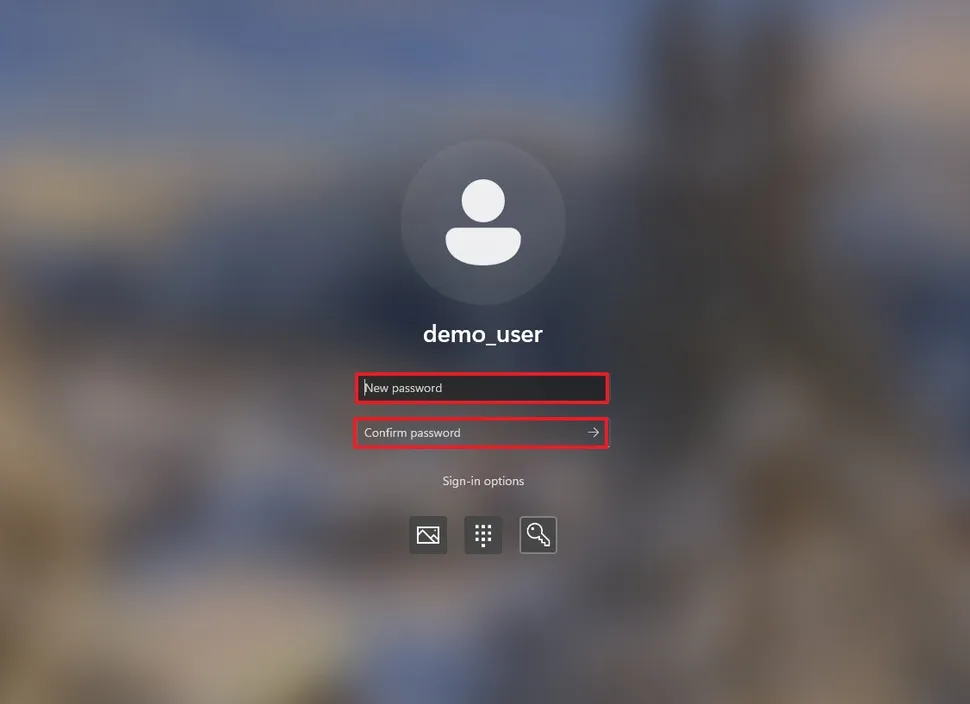 Login picture is from WindowsCentral.com1.
PREAMBLE
For the average user of a computer, security is probably one of the most ignored if not misunderstood concepts of using an electronic device, let alone be very important in the age of connectivity. Securitizing your device is made up of layers and layers of safeguards that passively or actively engages the user into these practices and is built into the system occurring in multiple stages of the technology itself.
Annoying as it is and not full proof, changing the password every so often is actually a security preventive measure that reduces potential cyber attack. Security can be breached in so many different ways, even outside of the devices we use that can take the form of social engineering, password cracking, remote login, etc. Each of these different ways of security breaches are extensive topics in themselves and would be completely out of the scope of this blog post, but it is still important to provide some context in regards to this topic. Changing the password every so often adds a layer of protection on several different fronts where security vulnerabilities can occur.
I would be remiss to not mention that changing a password regularly in itself introduces a security flaw from potentially losing your password if you've already memorized the password that you previously used. Or, saved your password on something else, like a piece of paper. Doing so is outside your routine of doing things. Humans make mistakes. Sometimes we forget things. This is the strange dichotomy that we exchange of potentially losing our data for the sake of security.
DISCLAIMER: The information provided asis. User assumes all risks.
With all the preamble out of the way, we are ready to go over how we can disable the feature to change the password.
STEPS
The default setting to reset your password is every 42 days when the reminder appears at your login screen. If you still want to change the password but have different time intervals, the process is the same.
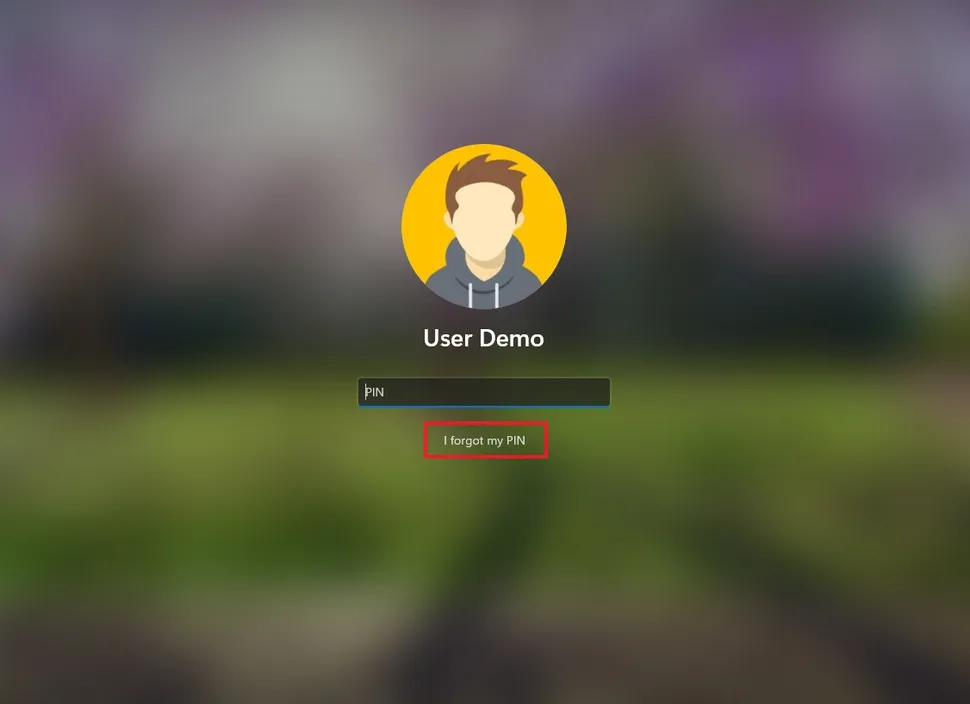
- First, you will need to follow the prompts to change your password by first typing in your existing password. BE CAREFUL NOT TO FORGET YOUR NEW PASSWORD!
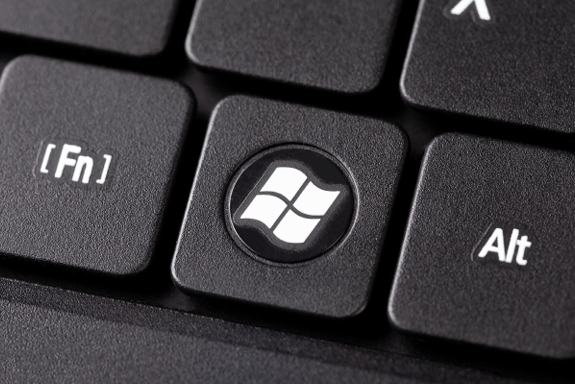
- Once logged in, Press the Windows key2 type
run.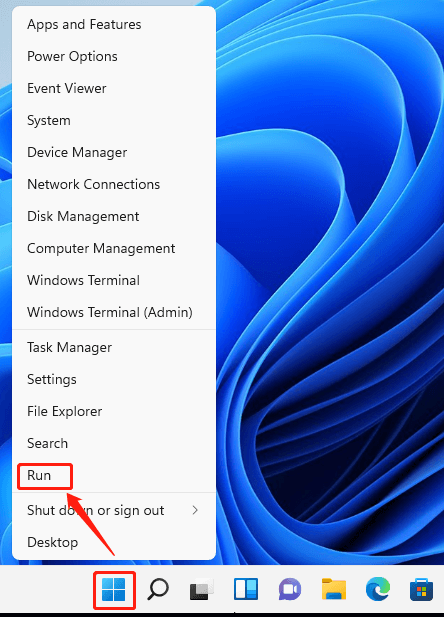
- Click "
run"3 and a prompt will pop up.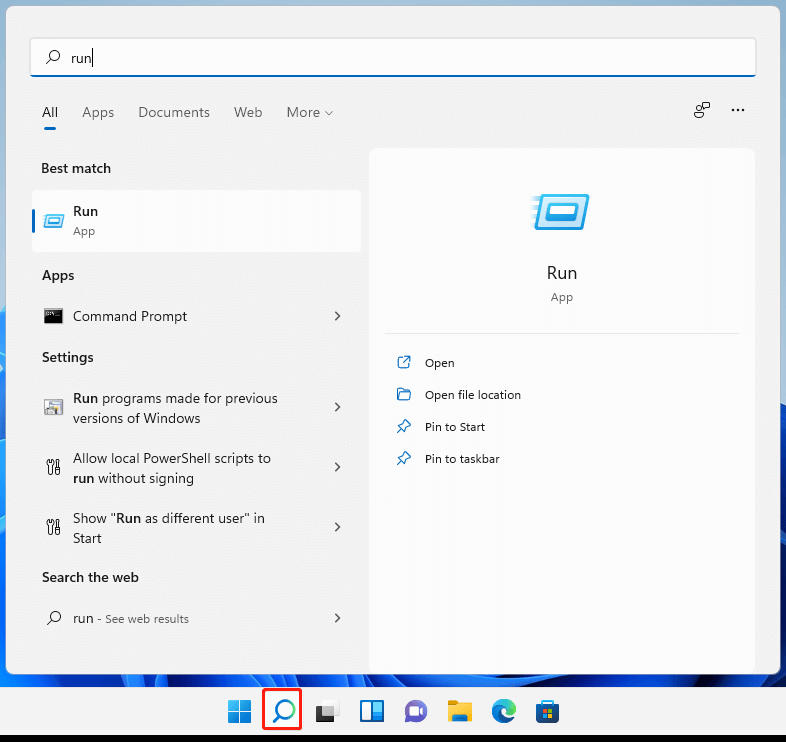
- In the
runtext box typesecpol.mscand press enter. This will open Local Security Policy window. Search for Account Policies in the dropdown margin and double click on it to reveal more files. Click on Password Policy and to the right of the dropdown margin are a list of policies. Click on Maximum password age and a new window will pop up, called Maximum password age Properties. - Click on the Local Security Settings tab and change the value to "
0" so that the password doesn't expire or change it to any number from 1 to 998 to determine what interval of time you want to change your password at login4.

Changing a password can be an annoying security practice but it also helps improve security by preventing potential hackers from cracking a static password because it is always changing. While changing the password regularly prevents hacking, it is not a panacea to completely eliminate all risks. The default setting to prompt the user every 42 days to change the password is a security measure that is highly encouraged to use.
REFERENCES
-
Windows change password login screen from windowscentral.com. ↩
-
Windows key picture from techtarget.com ↩
-
Windows run button from minitools.com ↩
-
Screenshot of Local Security Policy and Maximum password age Properties provided by A VR STORY LLC. ↩


Comments
Post a Comment