Steam OS Official Release and How-To Install
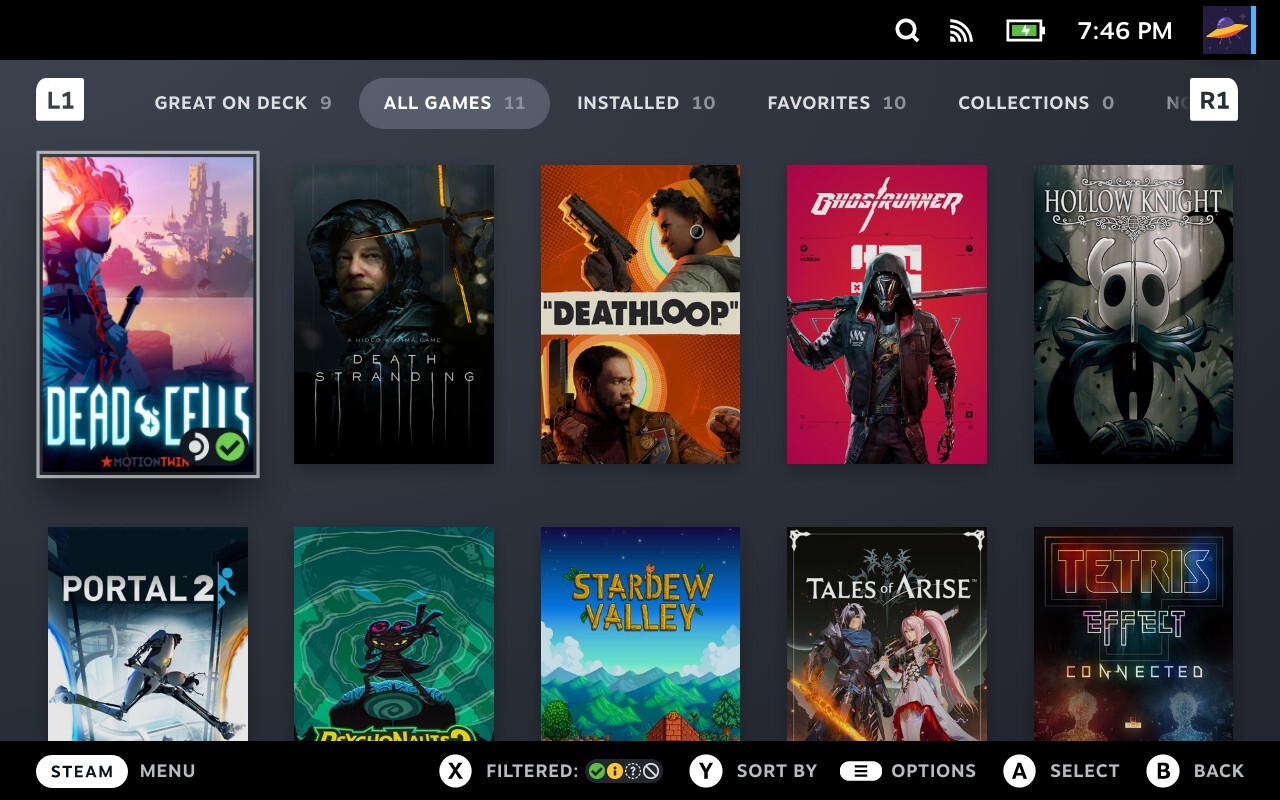 Image from Steam OS' official page1.
Want to reclaim your gaming freedom and expand into the Steam OS ecosystem and beyond? The official Steam OS version 3.8 ISO released back in June 2026, preceding the release of the much anticipated Steam Machine.2 If you ever wanted to dive into the Valve's Steam ecosystem, there has never been a better time to do so.
Prior to the official release, Steam has been available for Linux since the beginning. For instance, I have Steam running on Pop!_Os (a fork of Ubuntu) operating system. There were generally two options to experience Steam on Linux: download Steam like you would on a Windows PC or use the unofficial HoloISO3 developed by enthusiasts. With both options available, my recommendations would be to go with the official game launcher release since they receive regular updates and being less technical when compared to installing an operating system.
If you want to install Valve's Steam OS official ISO to a pc, you have to keep a few things in mind. Contrary to Linux's reputation to basically run on anything, Steam OS poses several limitations on what hardware the operating system can be installed on. At first glance this limitation would seem counter-intuitive to the Linux ethos, we should also take into consideration that this decision by Valve is to assure and be in favor of users having the most optimal performance and compatibility over being able to run on a larger number of hardware. If some of these restrictions are not favorable to your use case, you can always use a different Linux distribution, as aforementioned earlier.
With all that being said, if you would like to learn the step by step process read on.
INSTALL STEAM (The game launcher and NOT the OPERATING SYSTEM)
- Difficulty: Easy
- You will need to open a terminal (Gnome Terminal, Konsole, etc). Keep in mind you may need to install dependencies.
- DEBIAN BASED (In many cases, these will fall under the Ubuntu derived Linuxs'.):
sudo apt-get install steam - ARCH BASED (Arch, Garuda, CachyOS, Bazzite,etc):
sudo pacman -S steam
INSTALL STEAM OS
Contents of this section are copied verbatim from the official SteamOS Installation and Repair page.4
You might need to do this if you would like to install SteamOS on your device, have installed another OS and would like to get back to SteamOS, or are experiencing other breaking issues. For other recovery and troubleshooting options, visit SteamOS Recovery and Troubleshooting5.
Currently, the only devices officially "Powered by SteamOS" are Steam Deck, Steam Machine and Legion Go S. We are working on broadening support, and with the recent updates to Steam and SteamOS 3.8, compatibility with other AMD powered PCs (handhelds and desktops) has been improved.
| Powered by SteamOS | Beta SteamOS Support |
|---|---|
| Steam Deck | Lenovo Legion Go |
| Steam Machine | ASUS ROG Ally |
| Steam Machine | ASUS ROG Ally X |
| Other AMD powered handhelds | |
| AMD discrete GPUs |
Support for SteamOS installed on a PC
SteamOS can be installed on additional AMD-powered devices beyond those listed above.
If you encounter issues while using SteamOS on a PC, we recommend reporting the issue in the SteamOS GitHub6, where the developers actively track compatibility issues, bug reports, and feedback. Steam Support may have limited ability to troubleshoot issues that are specific to hardware outside of the officially Powered by SteamOS devices.
INSTALLING STEAMOS
- Download the SteamOS image here (click)7.
- Prepare a USB key (8GB minimum) with the recovery image:
-
On Windows we recommend using the Rufus utility. Select the recovery file and write it to your USB drive (this will format your USB drive). When it's done, select 'Close' and eject the drive.
-
On MacOS you can use Balena Etcher to write the recovery file to your USB drive.
-
On Linux you can also use Balena Etcher to write the recovery file to your USB drive - or if you prefer you can do this directly from the command line:
bzcat steamdeck-recovery-4.img.bz2 | sudo dd if=/dev/stdin of=/dev/sdX oflag=sync status=progress bs=128M(set /dev/sdX to the USB device you inserted)
-
- Shut down your device if it isn't already off.
- Insert the USB recovery drive you created into your device’s free USB port, or hub.
- Enter the BIOS/Boot Manager for your device.
-
On a Steam Deck, hold 'Volume Up' and click the Power Button - when you hear the chime, let go of the Volume Up button, and you'll be booted into the Boot Menu. Use the dpad and A button to select the Boot Manager.
-
On a Steam Machine, power it on and hit the "Esc" key on your keyboard few times during boot to enter the BIOS. (Note: wired keyboard recommended if available, if not, most wireless keyboards should work too)
-
For other hardware, follow the instructions for your specific device to get to the Boot Menu. You may need to disable Secure Boot in order to boot from a USB drive. Learn more here.
-
- Select to boot from the USB recovery drive.
-
On a Steam Deck, navigate to Boot Manager, boot from the 'EFI USB Device' (your USB key)
-
On a Steam Machine, use a keyboard to navigate these menus, and select Boot Configuration, UEFI (your USB key)
-
- The screen will go dark while it's booting - give it a minute.
- Once booted you will be in a desktop environment, you can navigate using trackpad and trigger, or touchscreen (on Deck), or mouse (on Machine).
- Select the Wipe Device & Install SteamOS option on the desktop. This will fully wipe your device and install stock SteamOS.
- Once it's done installing, reboot and you will be in the SteamOS welcome experience.
Repair and Recovery options
There are three options available in this installation and recovery environment. Complete steps 1 through 7 above, and select from the following options depending on your needs.
- Re-image Device - This performs a full factory reset - all user info, installed games, applications, or operating systems will be wiped and replaced with stock SteamOS.
- Repair SteamOS - This will reinstall SteamOS on the Steam Deck or other device, while attempting to preserve your games and personal content.
- Recovery tools - This opens a prompt with the ability to make changes to the device's boot partition.
Disabling Secure Boot
For most non-Steam Deck devices, you will need to disable Secure Boot on your device in order to re-image from a USB drive. This can be disabled in your device’s BIOS / UEFI menu. You can find out how to get to this setting from your manufacturer - here are sample instructions for the original Legion Go and the ROG Ally.
Legion Go / Legion Go S (Windows) - Secure Boot Settings
- Power down completely
- Hold volume + button, press power button – keep holding volume button
- In the ‘Novo Button Menu’ pick bios setup (may have to use touch screen)
- Tap More settings
- Tap Security
- Under Secure boot > pick disabled
- Tap Exit
- Tap Exit saving changes
- Follow instructions to install SteamOS on your device
ROG Ally - Secure Boot Settings
- While powered on, hit restart
- Once restarting, hold down volume + button to get to bios utility
- Hit ‘Y’ for advanced mode
- Hit dpad-right to the security tab
- Dpad down to secure boot, A to select
- Secure Boot Control to ‘disabled’
- B to go back
- Right arrow to save and exit
- Follow instructions to install SteamOS on your device
VERSIONS
2026v.0.1.4: 19Aug26: adjust intro, table alignment, lists (ordered, unordered), some links target="_blank"
2026v.0.1.0: init8
REFERENCES
-
Steam OS: (verbatim): "SteamOS is Valve’s Linux-based operating system. It features a seamless user experience that's optimized for gaming, while retaining access to the power and flexibility of a PC. SteamOS plays tens of thousands of games on Steam, and we are constantly testing the Steam catalog for SteamOS compatibility. It's an open Linux platform that leaves you in full control, and you can install new software or content as you wish. By default, the Steam Client serves as a user interface and provides connectivity to our Steam online services, but you can still access the standard Linux desktop. Users should not consider SteamOS as a replacement for their desktop operating system." ↩
-
Valve Releases SteamOS So Anyone Can Make a Steam Machine Now ↩
-
HoloISO archiso Enthusiast driven unofficial release of Steam OS. It repository is no longer being developed and placed in the public archive. ↩
-
SteamOS Installation and Repair: The official installation page of Steam OS. ↩
-
blog.avrstory.net's development release page. ↩


Comments
Post a Comment