How-To: Google Chrome: Toggle ON/OFF Built-In AI
 Image from Tom's Hardware1.
INTRODUCTION
Artificial Intelligence (AI) is proliferating everywhere whether we like it or not. While I remain optimistic on the utility of AI's use, I also value the choice of when to use it.
Bundling features to an operating system is not new and not exclusive to any particular operating system. Apple iPhone comes with Siri and Windows 11 comes with CoPilot2 both are opt-in, meaning they need to be toggled 'off' to disable them. Siri is 'on' by default for every installed application on your iPhone and will need to be toggled 'off' for each one. How to disable these features for iPhone and Windows 11 is outside the scope of this post.
With that being said, Google's Chrome (as of version 147.0.7727.137), more specifically for Apple Mac computers and Windows 11, "Gemini Nano" is/or will be installed on your system, along with being toggled 'on' by default1. The file takes up 4 GB of space for each Google profile that is logged into that device. If you have many accounts logged in, the local Gemini Nano is going to take up plenty of system drive space.
As of drafting this blog post, on 6 May 2026, Tom's Hardware1 published an article regarding Google installing Gemini Nano, a 4GB AI, into Chrome. Immediately following, Youtubers, such as BrenTech3 provided instructions on how to disable and locate the file(s). The contents of this post is a compilation from both sources including steps I took on Linux that is similar to Mac.
PURPOSE
The purpose of this blog post is to show the step-by-step process of disabling and removing Gemini Nano from the Chrome browser on Windows 11 and Mac devices.
TOOLS
- file explorer
- terminal
CAUTION
Information in this blog post is provided "as-is". Performing any of the mentioned steps, you do at your own risk. If you are unsure about performing any of the steps, please consult a professional.
CONSTRAINTS
- The how-to assumes you have Google Chrome installed.
- The how-to does not include other applications (Electron derived) and/or browsers (Vivaldi, Brave, Opera, Edge, etc) that are derived from Chrome.
- You should have familiarity of navigating the devices file system.
- The steps for Apple Mac has not been validated and are based on Ubuntu's file system. The steps assume similarities in architecture considering that Mac and Ubuntu are based on Unix.
ACTION_ITEMS
every version corresponds to action items that need to be completed.
CHROME BROWSER
- Open the Chrome Browser.
- Open Chrome's Browser Menu by clicking on the three vertical dots and navigate to Settings4 5.
:max_bytes(150000):strip_icc():format(webp)/001_4103634-5ba42511c9e77c0050495eea.jpg)
- In Settings, look for and click on System. Locate and Toggle 'off' "On-device AI" (*This will need to remain toggled 'off' to prevent Chrome from redownloading Gemini Nano again.*6):
On-device AI
To power features like scam detection, Chrome can use AI models that run directly on your device without sending your data to Google servers. When this is off, these features might not work. Learn more about on-device AI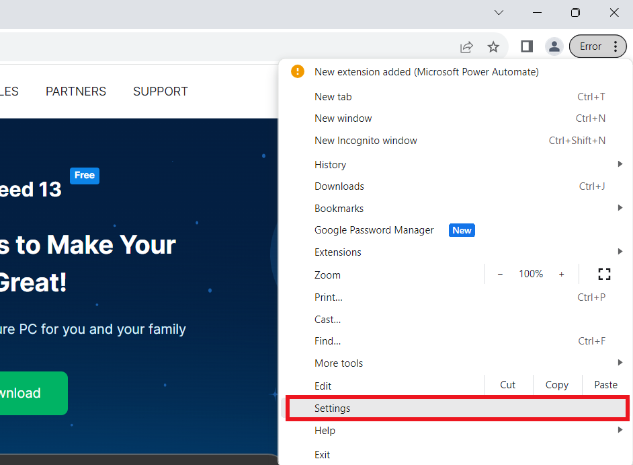
- After following the above steps, proceed to the next steps depending on your operating system.
WINDOWS
- Open a file explorer.
- Navigate to
(local disk C:)\Users\<profile>\AppData\Local\Google\Chrome\UserData\OptGuideOneDeviceModel\<[a-zA-Z0-9.]+>\weights.bin7 ~4GB. Delete theweights.bin. You may need to deleteweights.binfor other profiles as well3.
MAC
- Open a terminal (This can also be performed using a file explorer).
- Navigate into the google-chrome directory:
cd ~/.config/google-chrome/. - The
OptGuideOneDeviceModel/directory is typically located under theDefaults/directory. Like on Windows 11, locate theweights~4GB file and delete it. - While in the
~/.config/google-chromedirectory you can also perform a search usingfind ./ -size +5MBthat recursively searches for all files5MBor larger through current directory and any child directory. You can change the+5MBto narrow the search and then delete the file.
VERSIONS
30 July 2026v.0.1.2: Linux: Google Chrome 151.0.7922.71[Chromium 150.0.7871.181]: Gemini Nano not found: find ./ -size +40M # ~/.config/google-chrome/* .
28 May 2026v.0.1.1: Linux: Google Chrome 148.0.7778.215: Gemini Nano not found: find ./ -size +40M # ~/.config/google-chrome/* .
6 May 2026v.0.1.0
REFERENCES
-
Check your storage: Chrome may be downloading a 4GB AI model — here’s what we know ↩ ↩2 ↩3
-
Your Computer may be at risk of not receiving updates on Oct 14, 2025 Microsoft Windows 10 will be not receive updates ↩
-
BrenTech: Google Chrome Is Silently Downloading a 4GB AI Model! Here's the FIX! ↩ ↩2
-
As of writing this post, there is no guarantee that toggling this feature 'off' will persist. Consider checking your device every so often to make sure. ↩
-
Regular Expressions that is supposed to represent ASCII hash. ↩


Comments
Post a Comment